Tuesday, January 13, 2015

Deleting MongoDB Records using Gridview

So far we have seen select and insert Operations .
we now see how we can perform delete operation.
Place a check box control in the gridview like below


<asp:GridView ID="gvShowTasks" runat="server" CssClass="table table-striped table-bordered table-hover" OnRowCancelingEdit="gvShowTasks_RowCancelingEdit" OnRowEditing="gvShowTasks_RowEditing"  DataKeyNames="Id" OnRowUpdating="gvShowTasks_RowUpdating">
                   <Columns>
                       <asp:TemplateField>
                           <ItemTemplate>
                               <asp:CheckBox ID="chk" runat="server" />
                           </ItemTemplate>
                       </asp:TemplateField>
                       <asp:CommandField ShowEditButton="true" />
                   </Columns>
               </asp:GridView>


on the Code Behind Place the below code in the Delete button click event


protected void btnDelete_Click(object sender, EventArgs e)
    {
        MongoClient monClient = new MongoClient("mongodb://localhost");
        MongoServer ms = monClient.GetServer();
        ms.Connect();
        MongoDatabase db = ms.GetDatabase("testdb");
        MongoCollection collection = db.GetCollection<Tasks>("Tasks");
        Tasks tsk = new Tasks();

        foreach (GridViewRow gvr in gvShowTasks.Rows)
        {
            var rowIndex = gvr.RowIndex;
            var TaskID = gvShowTasks.DataKeys[rowIndex].Values["Id"].ToString();// capturing object id for deletion
            var rowVal = gvShowTasks.Rows[rowIndex].Cells[3].Text;
            CheckBox chk = (CheckBox)gvr.FindControl("chk");
          if (chk.Checked)
          {
              ObjectId bsonId=(ObjectId.Parse(TaskID));//converting string to object id
              IMongoQuery query = Query.EQ("_id", bsonId);
              collection.Remove(query);
             

          }
           
           
        }
        var ShowTasks = collection.FindAllAs<Tasks>().ToList<Tasks>(); //Queries the tasks collection and Converts to List           
        gvShowTasks.DataSource = ShowTasks;//Set the List as Data source 
        gvShowTasks.DataBind();//Binds the Grid
    }

 Run the solution and there you go .. whichever row you have selected , on click of delete button the same row will be deleted . you can also customise your delete query in the statement
  IMongoQuery query = Query.EQ("_id", bsonId);

Creating a 1st simple MVC application

while i was working on a project where MVC architecture i was completely new to it  . i had to refer many e learning materials and finally i started creating an application myself for learning purpose .

the best thing i did was installing VS 2013 ultimate edition .
if you click on New Projects -Web you find the below screen .
Select MVC option from Icons available and click OK
and you will see that your solution is ready with some predefined folder in the solution explorer


The first thing i did was Creating a Controller and Named it as HomeController. this is your controller class . then i created an ActionResult to perform action and navigate to specific View.
namespace WebApplication1.Controllers
{
    public class HomeController : Controller
    {
        //
        // GET: /Home/
        public ActionResult Index()
        {
            return View();
        }
        public ActionResult GotoHome()
        {
            return View("MyHomePage");
        }
    }
}
but then , where is the MyHomePage view ?? i had to create a View as well
and when you create View , it is actually .cshtml page and not a class

placed a simple sentence in the body of the page

@{
    Layout = null;
}

<!DOCTYPE html>

<html>
<head>
    <meta name="viewport" content="width=device-width" />
    <title>MyHomePage</title>
</head>
<body>
    <div>
        Welcome to my first MVC View
    </div>
</body>
</html>

and now ran the solution . but i endedup with some error . i forgot to include controller name and action name in the url  and by doing that only i could navigate to desired page

but then this is complicated and wrong way of doing. user will never remember such things
so i had to route is little dynamically . so  i went to App_Start-> RouteConfig.cs and placed my navigation details like below

public class RouteConfig
    {
        public static void RegisterRoutes(RouteCollection routes)
        {
            routes.IgnoreRoute("{resource}.axd/{*pathInfo}");

            routes.MapRoute(
            name: "Home",
            url: "Home",
            defaults: new { controller = "Home", action = "GotoHome", id = UrlParameter.Optional }
        );

            routes.MapRoute(
           name: "Home1",
           url: "",
           defaults: new { controller = "Home", action = "GotoHome", id = UrlParameter.Optional }
       );

            routes.MapRoute(
                 name: "Home2",
                 url: "Home/Home",
                 defaults: new { controller = "Home", action = "GotoHome", id = UrlParameter.Optional }
             );


            routes.MapRoute(
                name: "Default",
                url: "{controller}/{action}/{id}",
                defaults: new { controller = "Home", action = "Index", id = UrlParameter.Optional }
            );
        }
    }

Now See the Home1 route Name. if i dont specify anything in the URL by default it routes to mentioned page where i mentioned the action

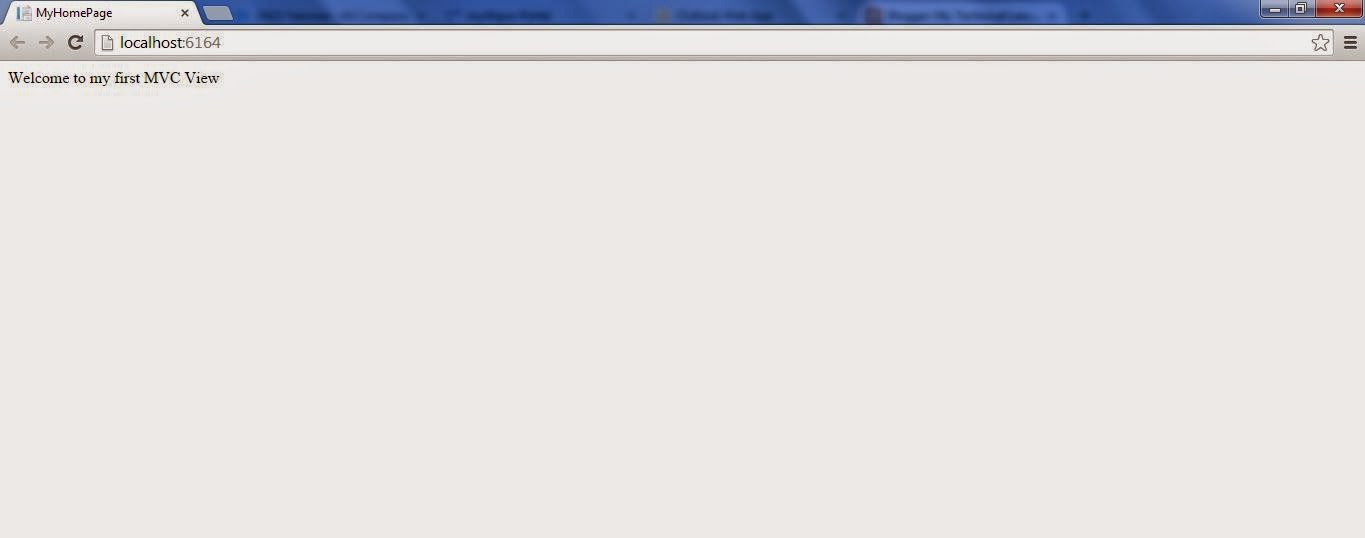
Click on f5 and see what you get in the browser
Simple isnt it ?? that's how i started learning MVC .i will keep posting new R&Ds on MVC

Thursday, November 20, 2014

Retrieving Records from MongoDb and Displaying in GridView

We earlier discussed about Inserting the records to mongoDB via C#.
now the Next Step in the CRUD cycle is Read the data from MongoDb and Flash it on the UI screen.
This is how I did :

Drag and Drop the Gridview control and apply the styles which suites your website screen design


Create Connection like Before :
MongoClient monClient = new MongoClient("mongodb://localhost");
MongoServer ms = monClient.GetServer();


ms.Connect();
 
MongoDatabase db = ms.GetDatabase("testdb");
MongoCollection collection = db.GetCollection<Tasks>("Tasks");
Tasks tsk = new Tasks();

Query the collection and Convert to List
 
var ShowTasks = collection.FindAllAs<Tasks>().ToList<Tasks>();

Set the List as Data source
gvShowTasks.DataSource = ShowTasks;

Binds the Grid

gvShowTasks.DataBind();

Run the Solution.(f5) Bammmm!!! you see that
 

Tuesday, November 11, 2014

Inserting to MongoDB from C#

I have always been a technology enthusiast and like to implement New things .
When I was introduced to mongo DB, an opensource database tool , I wondered how do I perform basic operations thru .Net .
Hence I created a simple application  .
Note : Mongo DB is NoSQL database and not Relational Database Like MSSQL or Oracle.

How I did it .

1.       Add MongoDb Dll Reference.
using MongoDB.Bson;
1.       using MongoDB.Driver;
2.       In the Button Click Event Create Mongo Connection
MongoClient monClient = new MongoClient("mongodb://localhost");
3.       Get Database name
       MongoServer ms = monClient.GetServer();
       ms.Connect();
MongoDatabase db = ms.GetDatabase("testdb");

Get Collections(tables)
MongoCollection collection = db.GetCollection<NewProjects>("Projects");

Add a new class similar to the structure u want the schema to be
public class NewProjects
{
       public NewProjects()
       {
              //
              // TODO: Add constructor logic here
              //
       }
    public string ProjectName { get; set; }
    public string ServiceName { get; set; }
    public string DescriptionName { get; set; }

}

Assign Values to each field (Binding the values from Front End )
NewProjects proj=new NewProjects();
              proj.ProjectName=txtProjName.Text;
              proj.ServiceName=txtServiceName.Text;
       proj.DescriptionName=txtdesc.Text;

Finally Hit Insert Command
collection.Insert(proj);

View the Result in the backend database


Observe that Unique ID  is automatically Created .

Values Passed from Front End


PS: I know you may find it little strange to read Json like Documents(records) because Mongodb stores it in json format . so I have  converted these documents from Json like structure to Table format

Here we go


This application was build with Bootstrap JS